Create an Instagram Carousel Post in Under 5 Minutes: Your Step-by-Step Guide

Instagram carousel posts are one of the most powerful ways to increase engagement, share value-packed content, and keep your audience swiping. Whether you’re an independent content creator, a business owner, or a social media manager, carousels can help you tell a story, educate your audience, or promote an offer in a visually appealing way.
Thankfully, creating high-quality Instagram carousels no longer has to be time-consuming or design-heavy. With Canva’s Carousel Studio app, you can generate both the copy and the designs in just a few clicks. Below is a simple, step-by-step guide to creating your first Instagram carousel quickly and efficiently. If video tutorials are more your speed, check out this short and helpful clip from the creator of Carousel Studio.
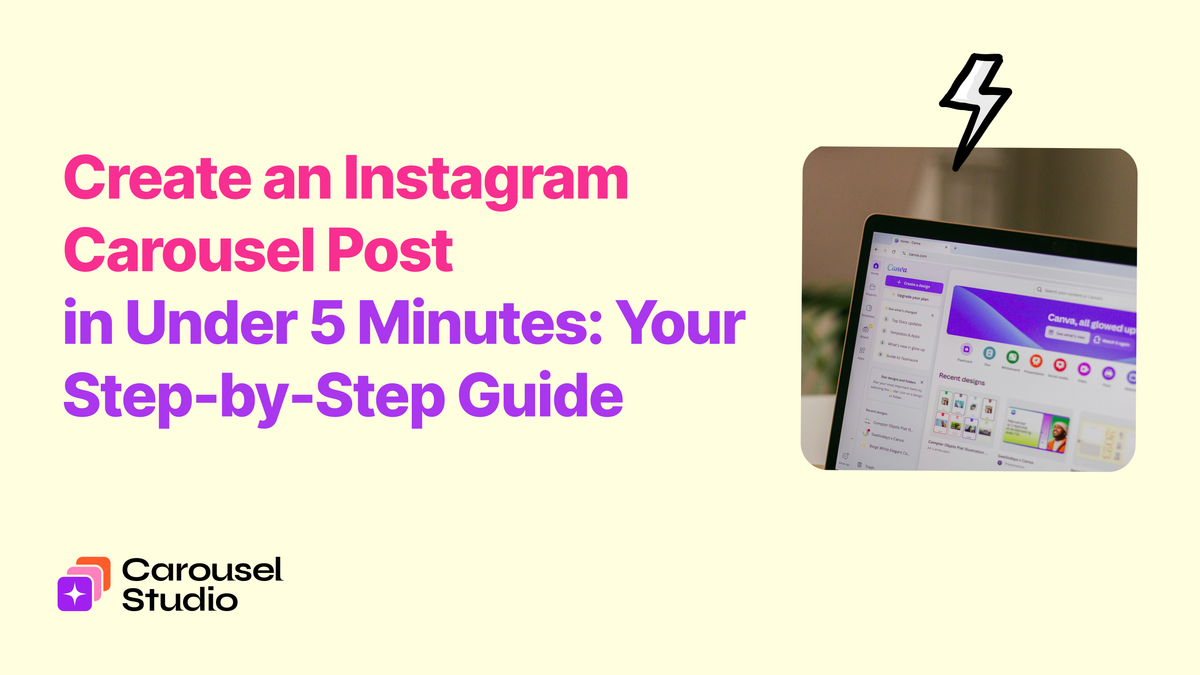
Step 1: Open “Apps” in Your Canva Account
Start by logging into your Canva account. On the left-hand side of the main dashboard, locate and click on the “Apps” section. This is where Canva houses all of its built-in tools and third-party integrations designed to speed up your workflow.
Step 2: Search “Carousel Studio” and Install the App
In the Apps search bar, type “Carousel Studio” and install the app.
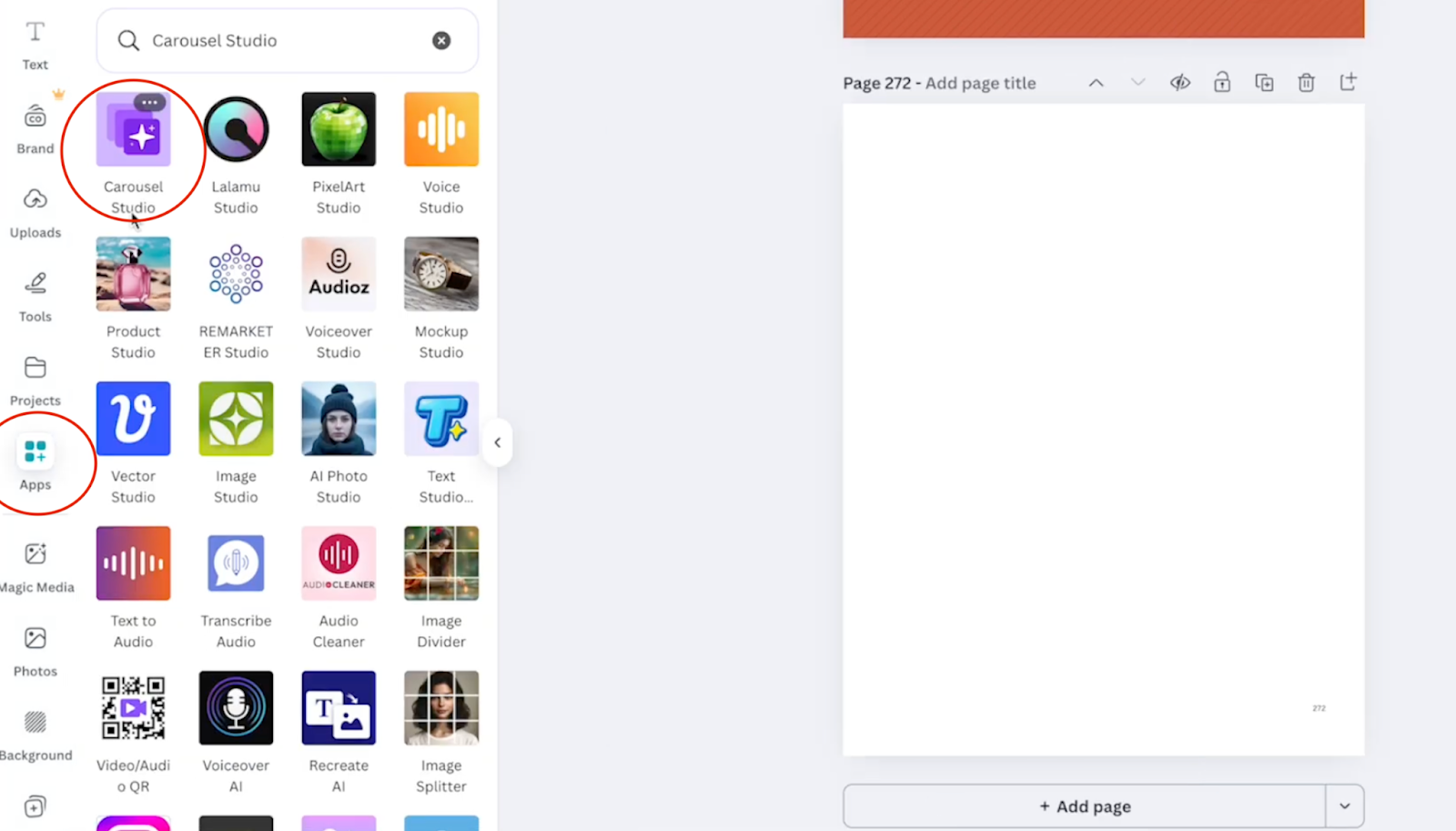
Once installed, you’ll be able to access it directly inside Canva whenever you want to create carousel content.
Step 3: Describe Your Carousel With a Prompt
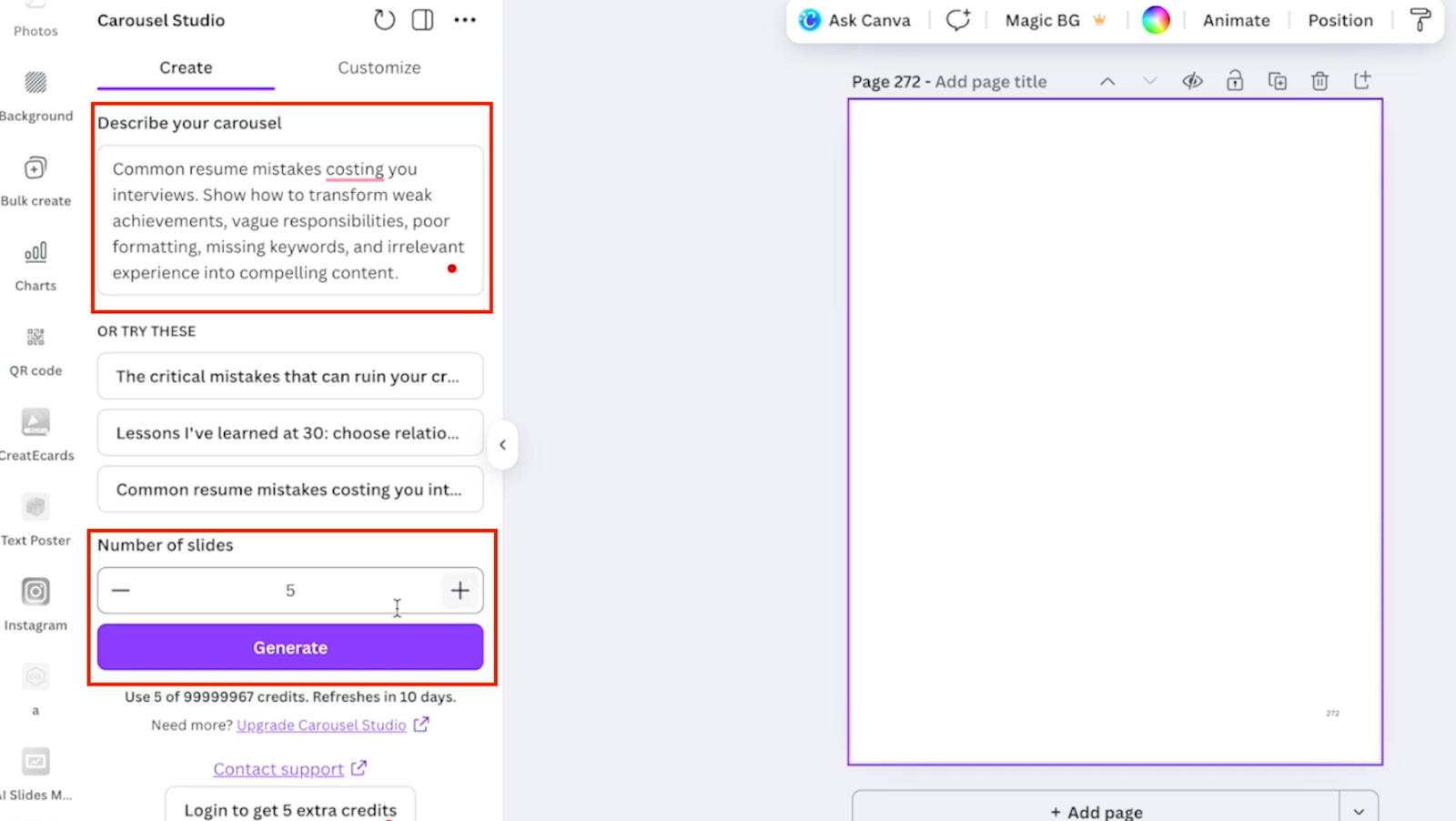
To create your first carousel, simply type in a short prompt describing what you want. This can include:
- The topic or message of the carousel
- The tone (educational, fun, professional, bold, etc.)
- Visual preferences like colours, fonts, or style
Carousel Studio uses this prompt to generate both the written copy and the design for each slide.
Step 4: Choose the Number of Slides
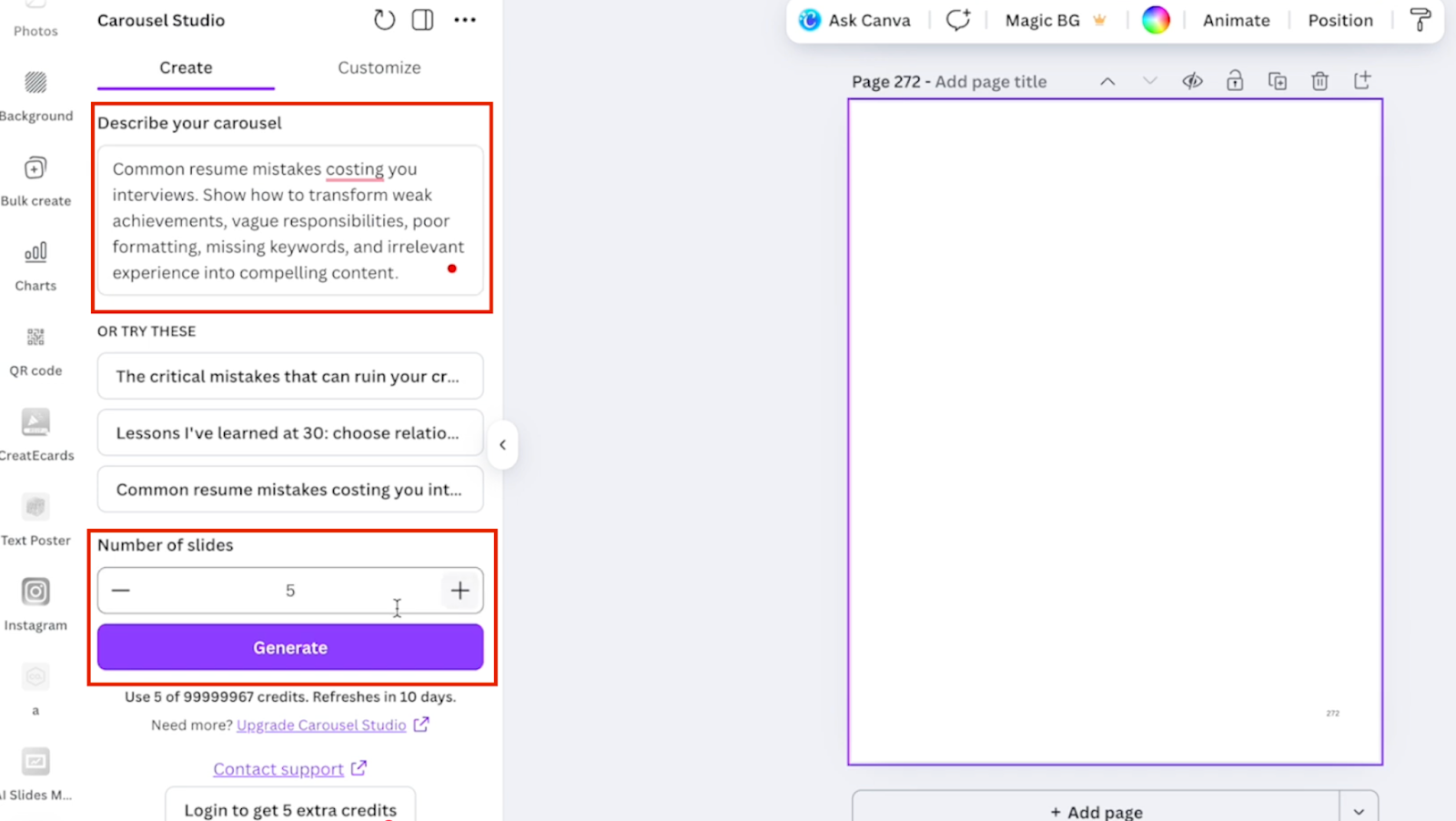
Next, select how many slides you want your carousel to include. Whether it’s a quick 3-slide post or a more in-depth 8–10 slide carousel, you’re in full control.
Step 5: Click “Generate”
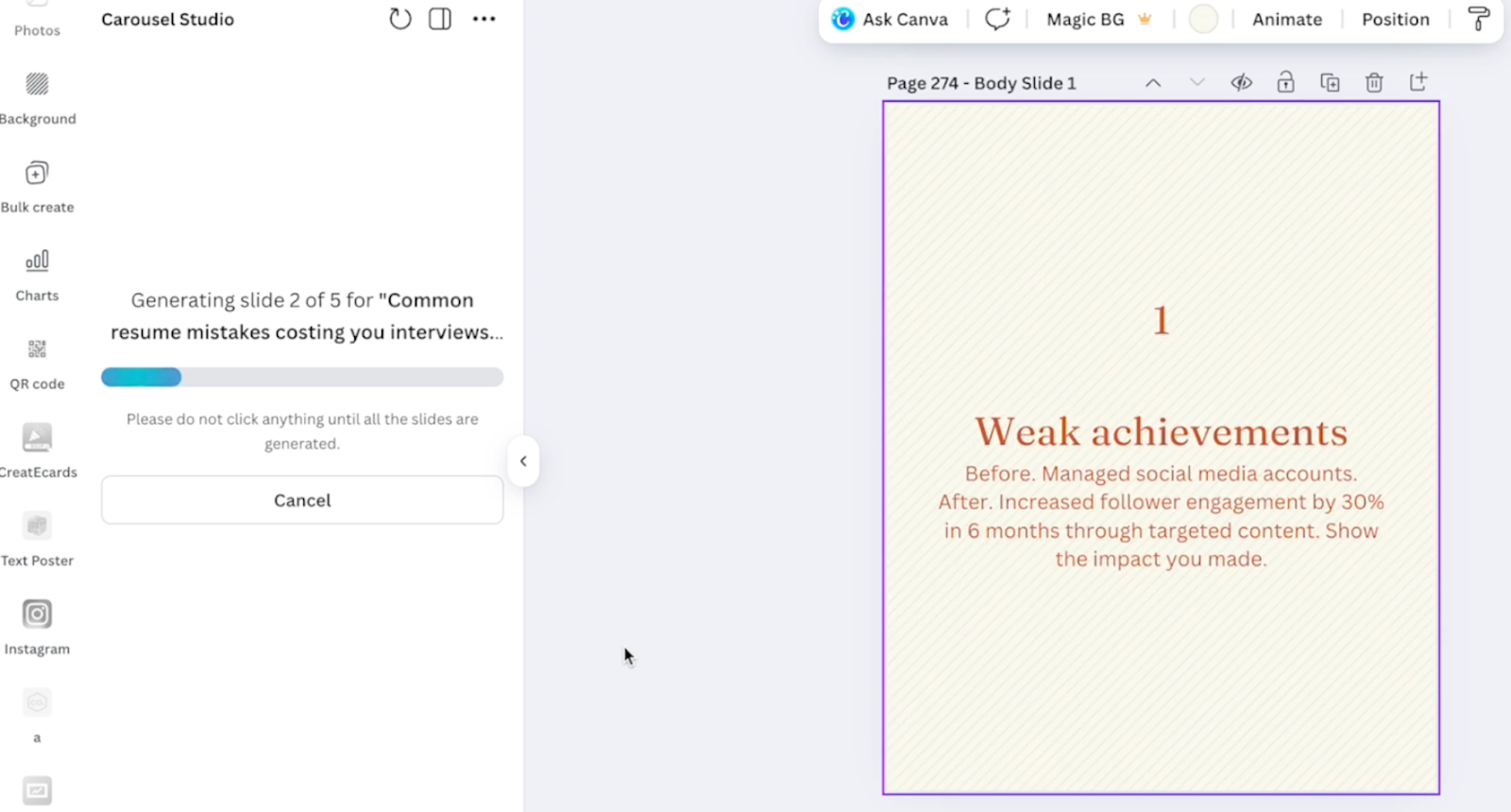
Once everything is set, click “Generate.”Carousel Studio will instantly create:
- Scroll-stopping carousel copy
- Professionally designed slides
- A cohesive layout that flows from slide to slide
No manual formatting or design skills required.
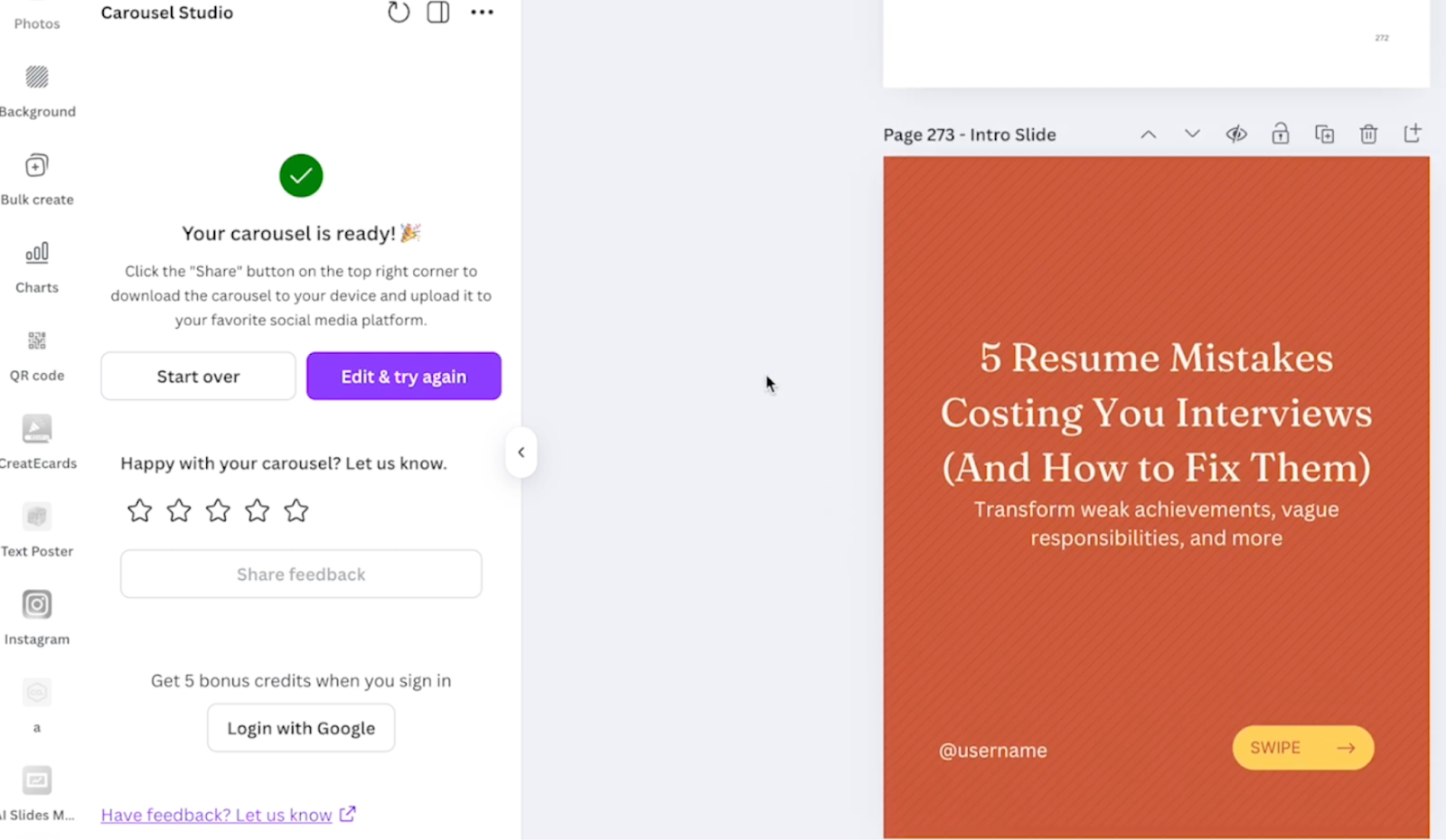
Step 6: Download and Upload to Instagram
When you’re happy with your carousel, click “Share”, then “Download.” Upload the finished carousel directly to Instagram and you’re ready to post.
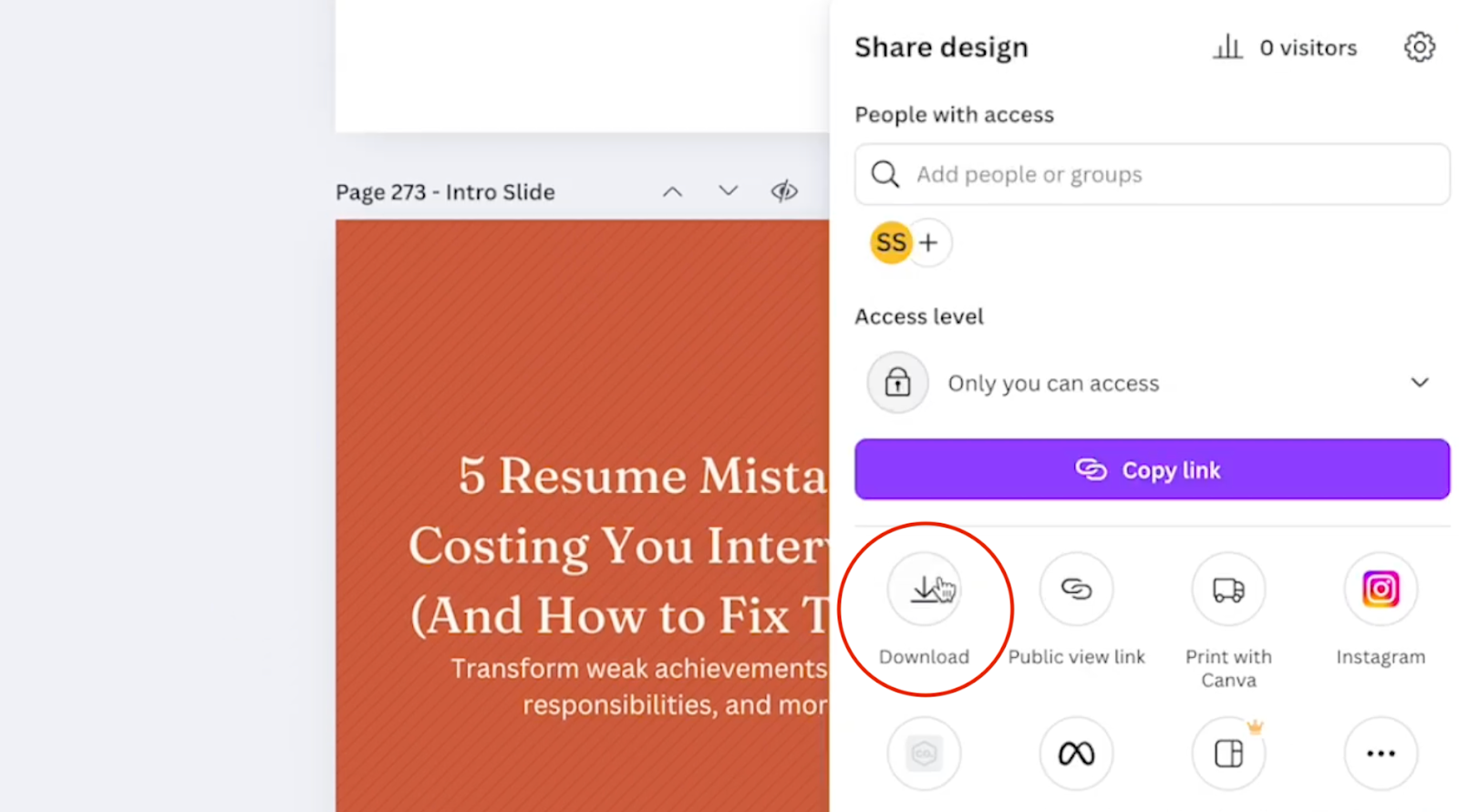
Optional: Customize Your Carousel Even Further
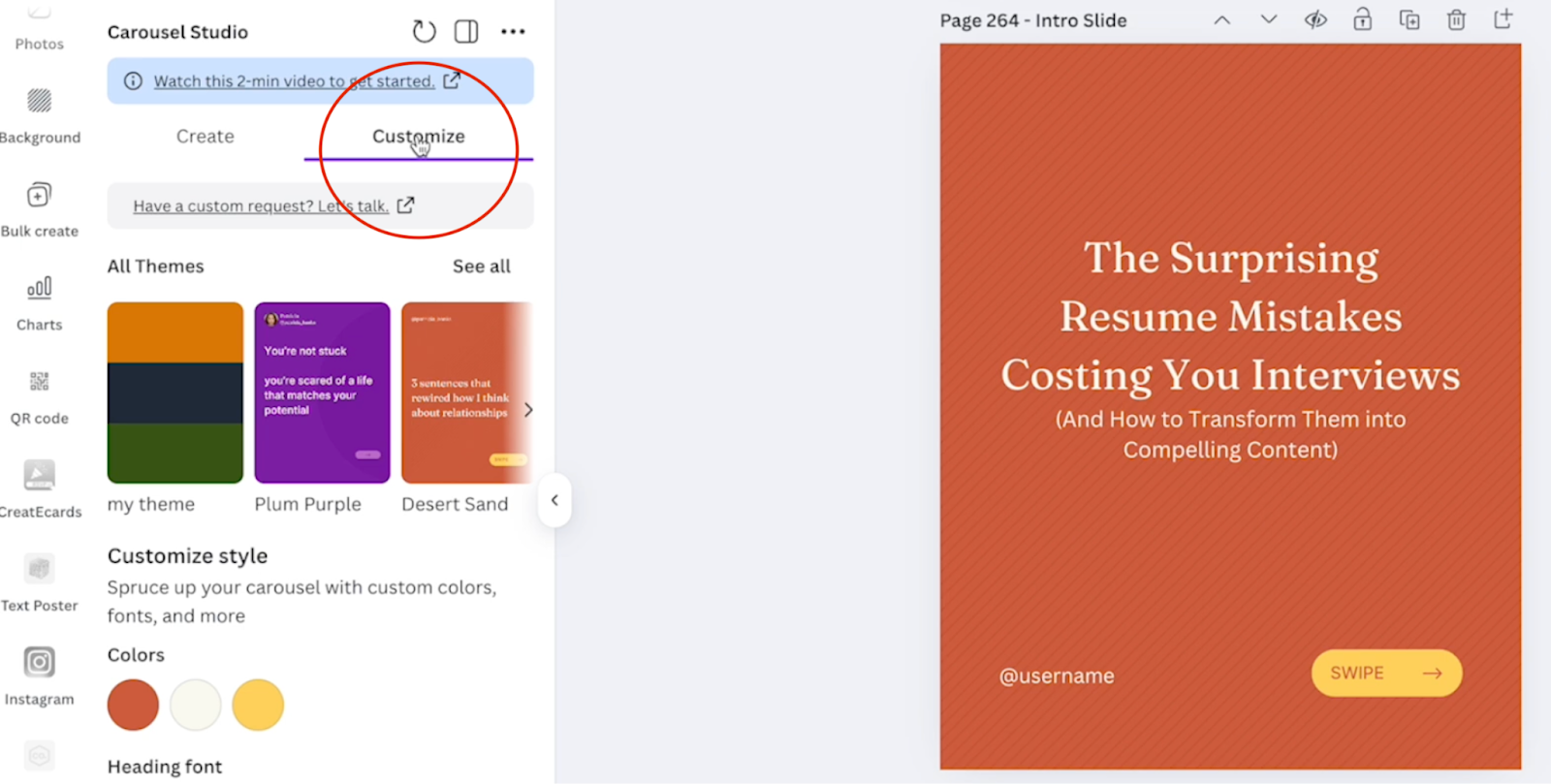
If you want to fine-tune your design, head to the “Customize” tab. Here, you can:
- Choose from multiple layout options
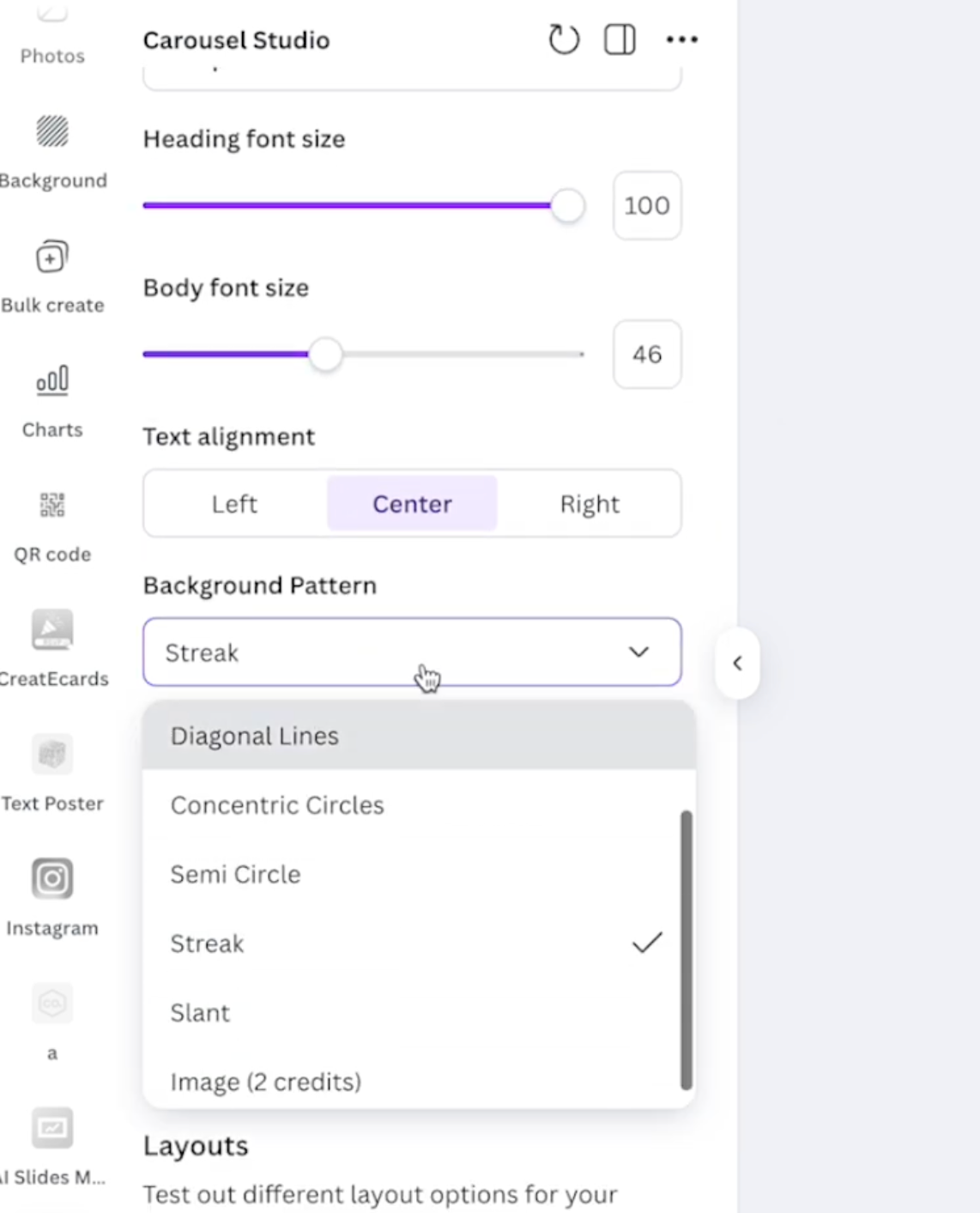
- Adjust colours, fonts, text size, and spacing
- Change background patterns and design elements
- Upload your own brand fonts, colours, and visuals
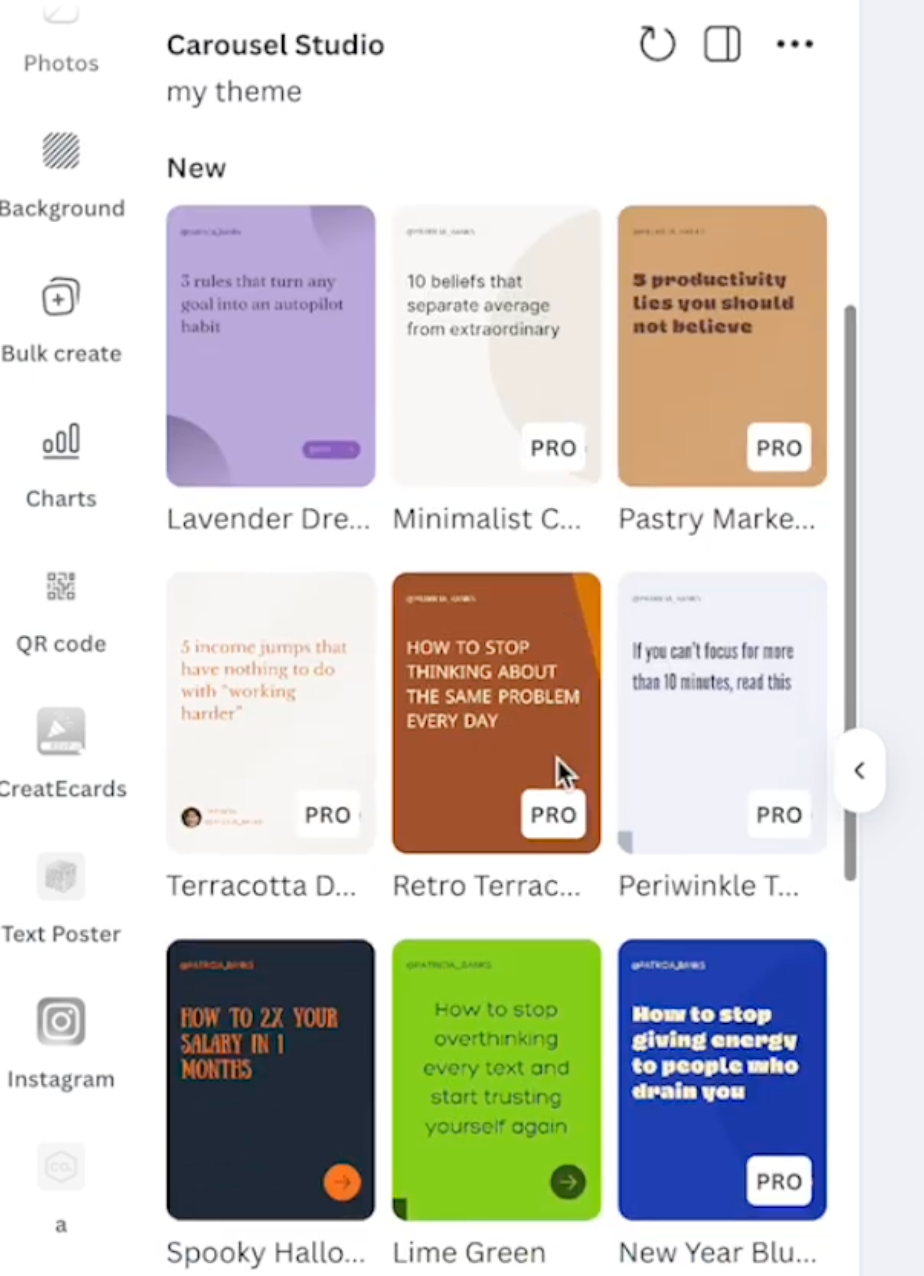
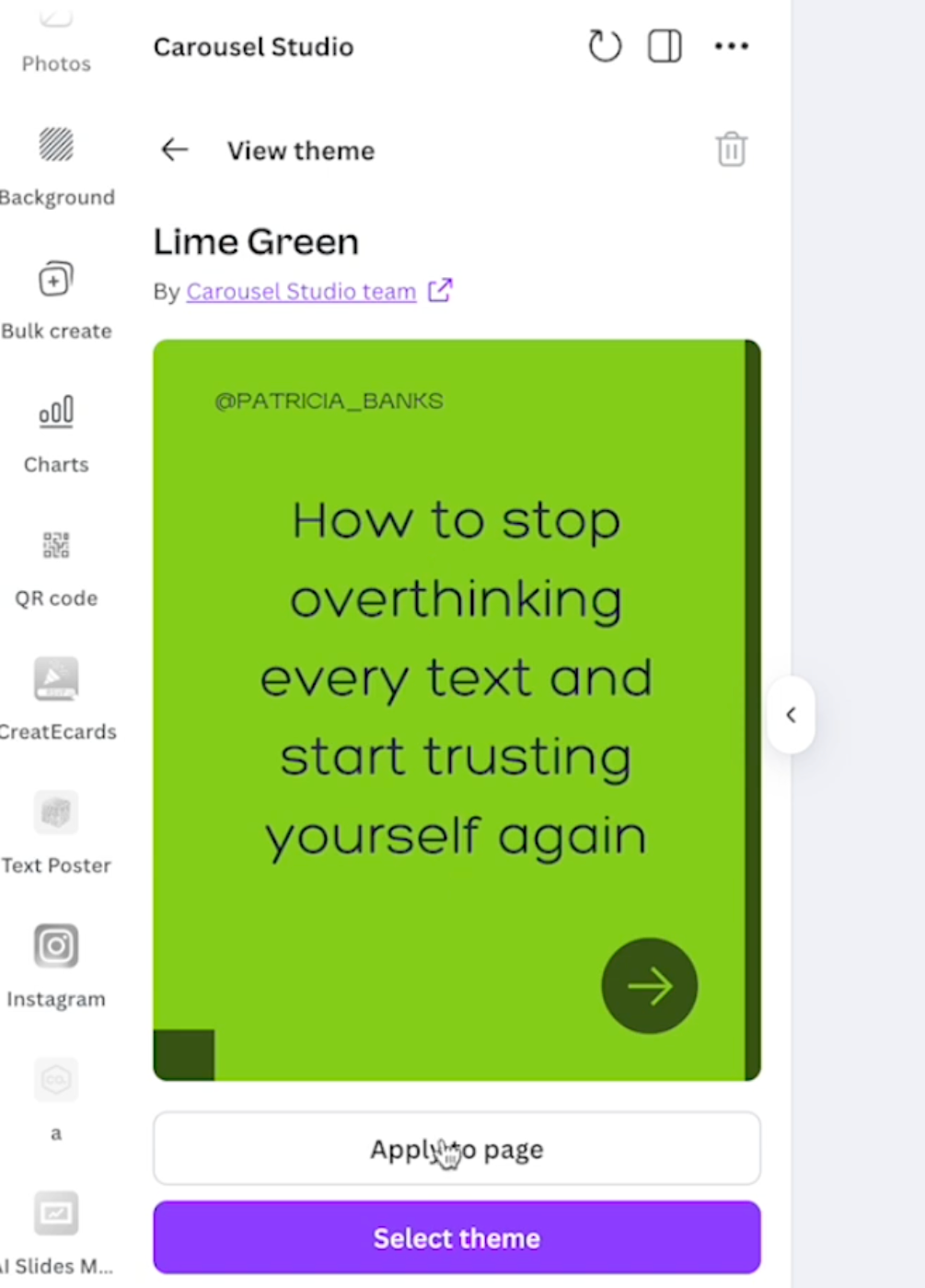
Best of all, Carousel Studio remembers your branding, making future carousel creation even faster and easier.
Give it a Try!
This is hands-down one of the fastest and most effective ways to create Instagram carousels in 2026. With Carousel Studio inside Canva, you can go from idea to post content in minutes—without sacrificing quality, consistency, or creativity.
If Instagram carousels are part of your content strategy, this tool is like waving a magic wand to make it a seamless task. 🪄
Click here to get started and see for yourself.