Crafting LinkedIn Carousel Posts (Without Spending Hours Creating)

If you’ve ever scrolled LinkedIn and stopped to click through a swipeable document with tips, stories, or visuals, you’ve seen a LinkedIn carousel in action.
A LinkedIn carousel post is one of the most effective ways to share educational content, build authority, and stand out in an endless feed; especially if you’re a business owner who prefers teaching over constant self-promotion. In this guide, we’ll cover what a carousel post on LinkedIn is, why it works so well, and how to create one your audience will engage with.
[Image via Media Modifier]
What Is a Carousel Post on LinkedIn?
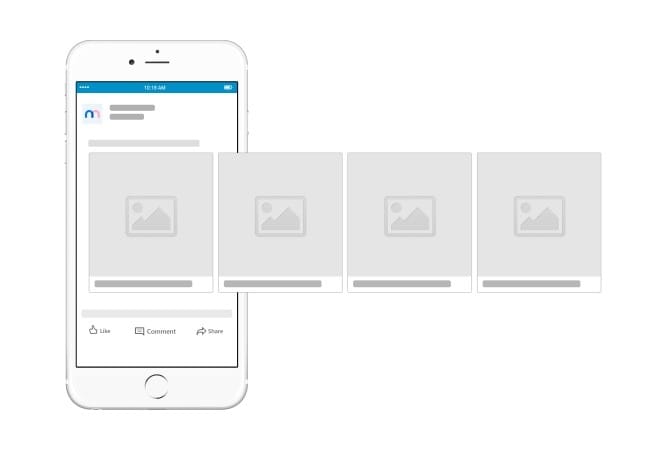
A LinkedIn carousel is a single post that contains multiple slides that users can click or swipe through. You see carousel posts on other social media platforms like Instagram, too. Unlike Instagram, however, LinkedIn carousels are typically uploaded as documents (PDFs) rather than images.
Another thing that sets LinkedIn carousel posts apart is that they’re usually speaking to a more professional audience. As a result, they tend to focus more on topics, updates, and information related to a specific business and/or industry.
A LinkedIn carousel post will often include:
- Educational insights
- Step-by-step guides
- Product deep dives + updates
- Visual storytelling
- Mini presentations
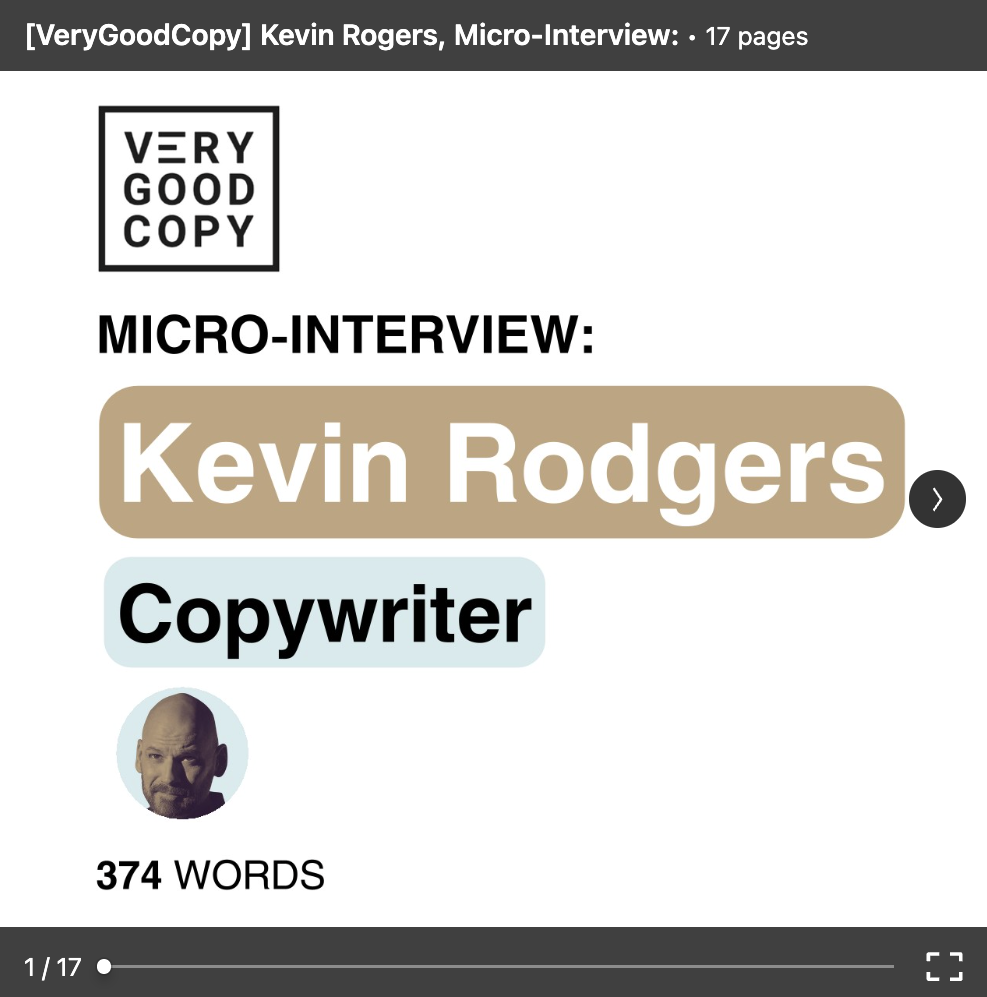
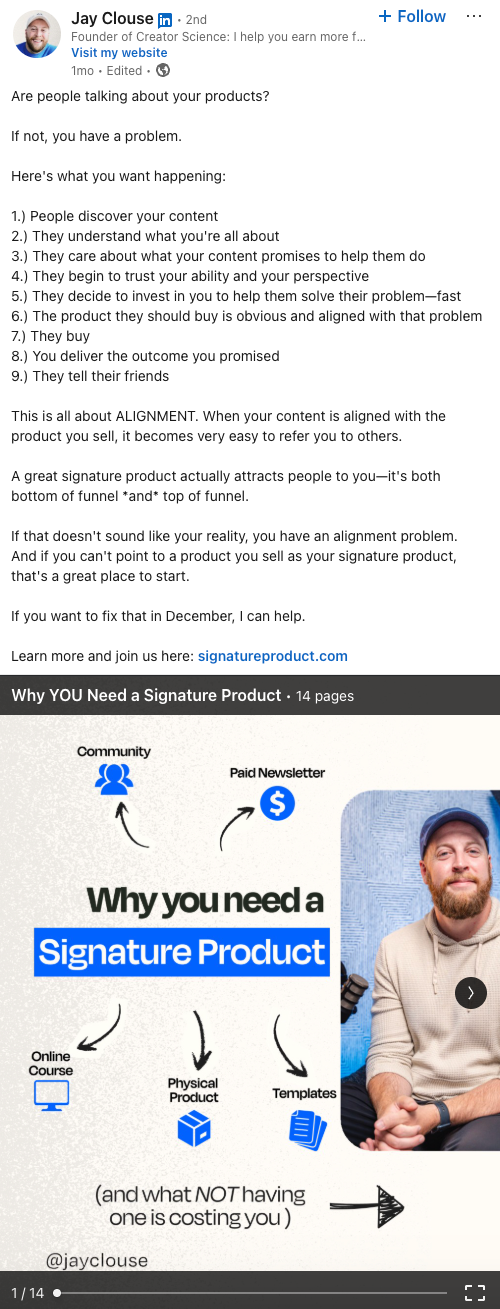
In short, LinkedIn carousel posts serve as short, scroll-stopping presentations designed for the busy professionals browsing LinkedIn’s feed. Here’s one example of what a LinkedIn carousel might look like in the feed.
[Image via Jay Clouse on LinkedIn]
Why LinkedIn Carousels Work So Well
LinkedIn favors content that keeps people engaged, and carousels do exactly that. Every click to the next slide signals interest, which can help your content reach more people.
For independent business owners and entrepreneurs, LinkedIn carousels are especially powerful because they allow you to:
- Teach or tell stories in a clear, structured way
- Highlight your expertise without sounding salesy
- Repurpose blog or newsletter content
- Build trust with your audience
- Slow down the scroll and hold attention
A well-designed carousel LinkedIn post lets you educate first, then sell later.
What to Share in a LinkedIn Carousel Post
Not sure what to create? Here are some types of content that have proven to work beautifully as carousel posts LinkedIn:
- “How to” guides (perfect if you’re teaching a process)
- Lists or frameworks
- Common mistakes to avoid
- Before-and-after transformations
- Sharing event highlights
- Case studies or client lessons
- Personal stories with takeaways
- Industry tips or trends
Think of your LinkedIn carousel post as a conversation starter, not a pitch deck.
Best Practices for LinkedIn Carousel Posts
To make your carousel stand out (and actually get read), keep these tips in mind:
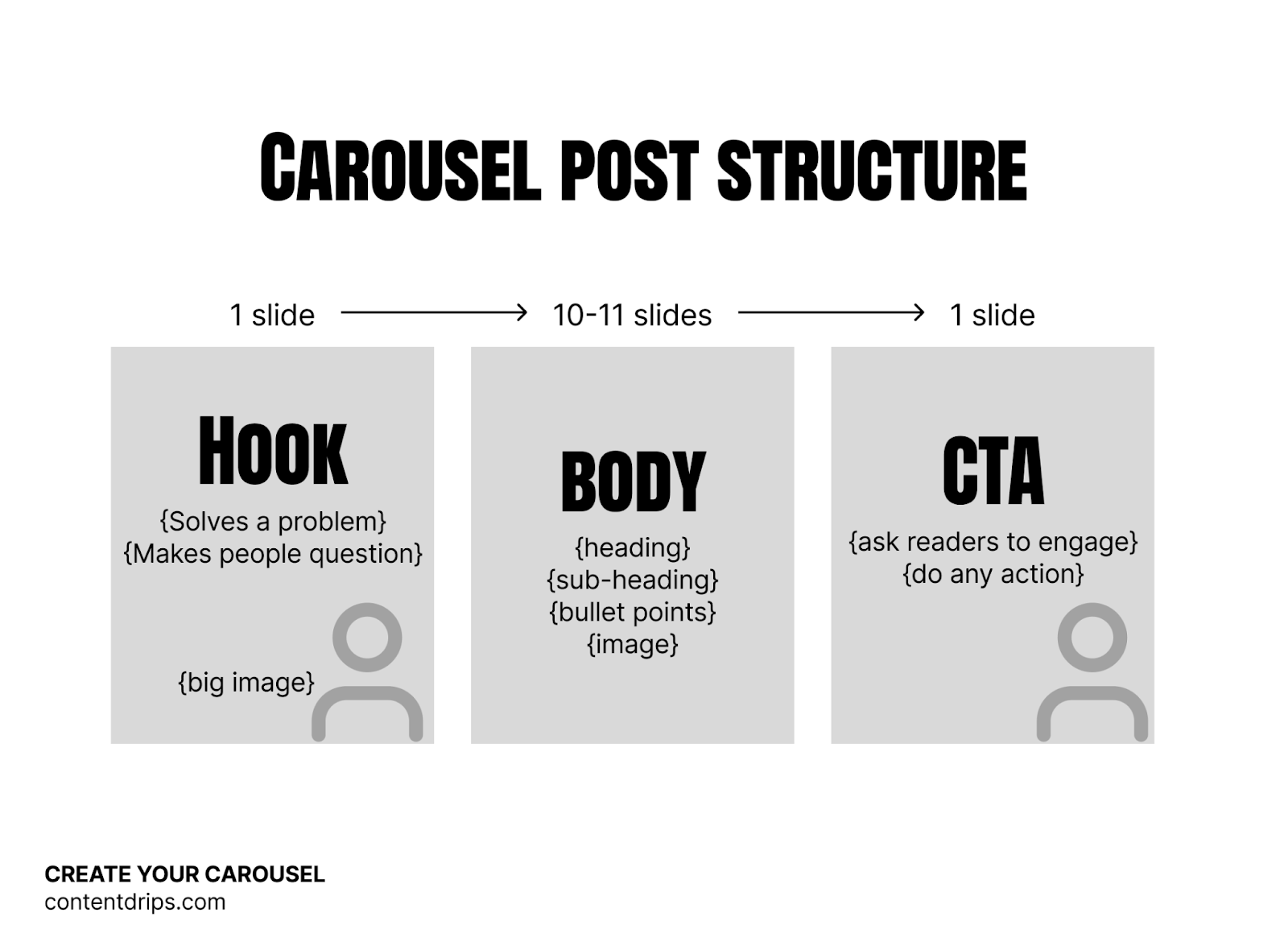
1. Hook Them on Slide One
Your first slide should clearly promise value. Ask a question, call out a pain point, or make a bold statement that encourages people to read more.
2. Keep Slides Simple
Each slide should focus on one idea. Clean layouts and short text blocks work best, especially for busy professionals.
3. Make It Skimmable
Use headlines, bullet points, and white space. Your audience should understand the message even if they don’t read every word.
4. End With a Clear Call-to-Action
On the final slide, invite action:
- “Save this for later”
- “Comment with your thoughts”
- “Follow for more tips”
[Image via Content Drips blog]
This not only encourages engagement with your post, it can be an opportunity to drive traffic to your profile, website, landing page, or resource.
How to Make a LinkedIn Carousel Post
If you’re wondering how to make a LinkedIn carousel, here’s a simple breakdown:
- Design your slides using a tool like Canva, Figma, or Google Slides
- Keep the format vertical or square
- Export your slides as a PDF
- Head to LinkedIn and create a new post
- Upload the PDF as a document
- Add a caption and post
And you’re all set! Once you learn how to upload a carousel on LinkedIn, it becomes one of the easiest content types to reuse again and again.
Tools to Create LinkedIn Carousels Easily
You don’t need design experience to create great content. These tools make it simple to create a LinkedIn carousel post:
- Canva (tons of LinkedIn carousel templates)
- Powerpoint or Google Slides
- Adobe Express
Templates are especially helpful if you want your content to look polished without starting from scratch.

[Image via Unsplash]
Get Started
If you want to show up consistently on LinkedIn without constantly reinventing the wheel, LinkedIn carousel posts are a smart, sustainable strategy.
They help you teach, share, and build authority in a way that feels natural and approachable—no viral tricks required. Start with one helpful idea, break it into slides, and let your audience learn from you one click at a time.
You don’t have to be an expert, just focus on how you can be helpful to your audience and start creating from there.
We’ll leave you with a few examples of what great LinkedIn carousel posts can look like below.
LinkedIn Carousel Inspiration
- Pretty Little Marketer - A playbook sharing tips and tricks
- Jay Clouse - A “How To Guide” that breaks something valuable down, step-by-step

- Eugenia Koptelova - A clever way to present and share research, stories, data, etc.
- Deel - Introduce people & tell their stories (new team members, clients, customers, etc.)
- Simone Partner - Introduce yourself and get personal about your journey
- Very Good Copy - Micro Interviews; share key highlights of an insightful conversation